Customer panel
The customer panel is where you manage a project's email traffic and settings. Each page in the left menu is covered below, in order.
Overview
A summary of the last 30 days: total emails, sent and open rates, and bounced or failed emails. Each bar is one day; the red part is that day's failures. Hover a bar for exact numbers.
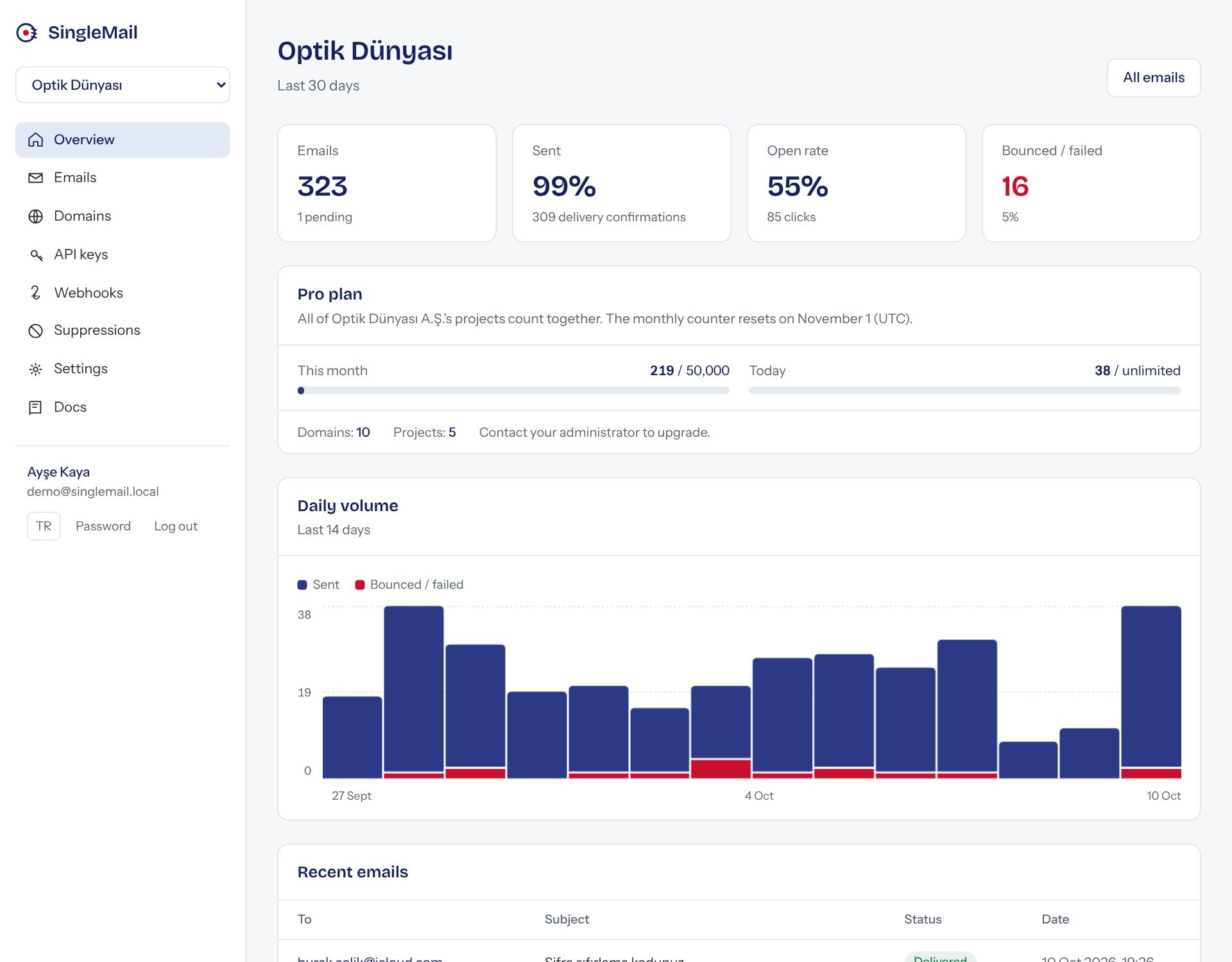
If you have several projects, switch between them or create a new one from the list at the top left.
Emails
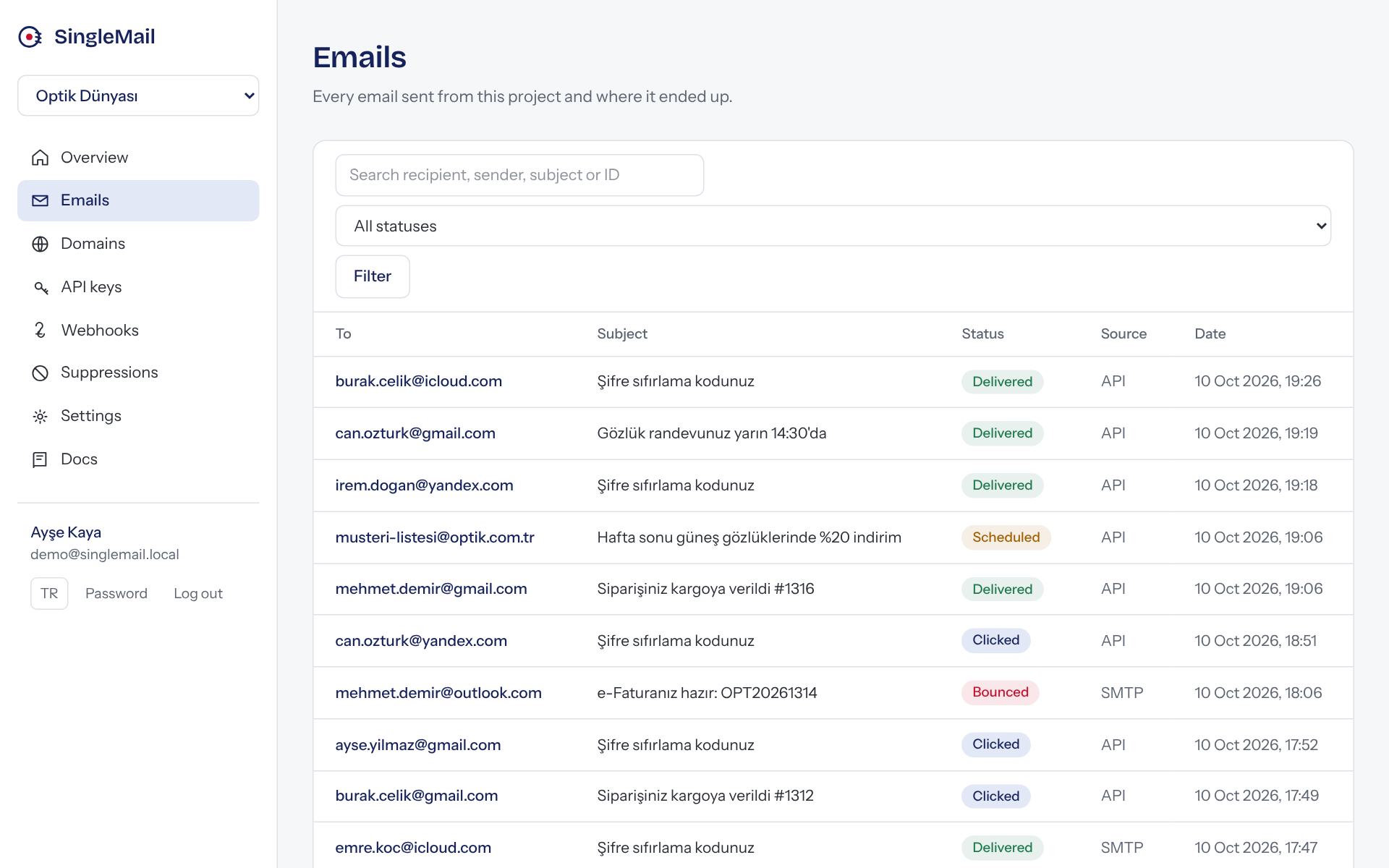
Every email you send is listed here. Search by recipient, sender, subject or email ID, and filter by status. The Source column shows whether it came through the API or SMTP.
Email detail
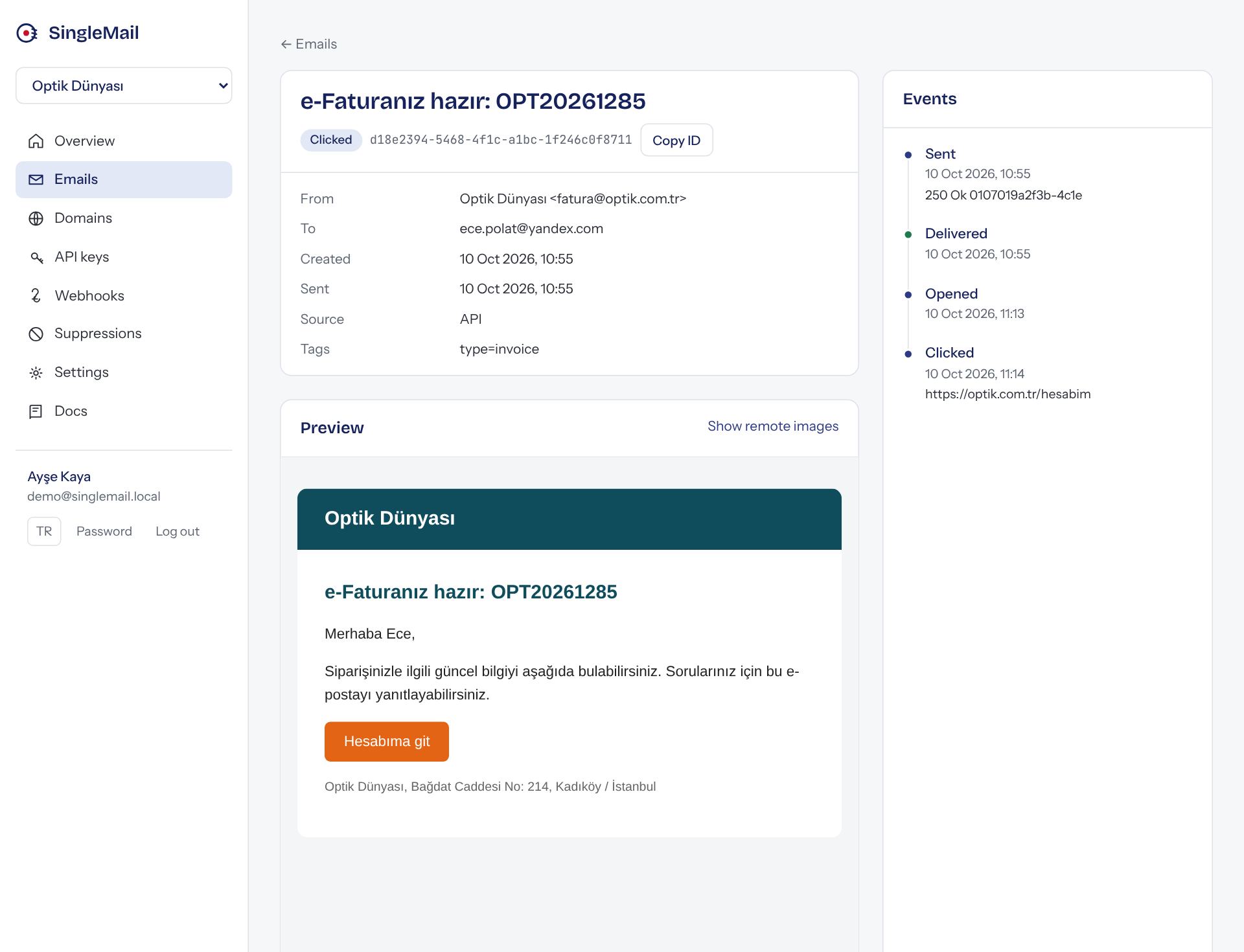
Click an email to see its headers, HTML preview and event timeline. This is where you answer support questions like “when was it delivered, was it opened?”. Scheduled emails can be canceled from this page.
What each status means
| Status | Meaning |
|---|---|
| Queued | The request was accepted and is waiting its turn. |
| Scheduled | Scheduled for later. Can be canceled before it goes out. |
| Sent | The delivery server (relay) accepted the email. |
| Delivered | The recipient's server received it. |
| Opened | The recipient opened it (when open tracking is on). |
| Clicked | The recipient clicked a link (when click tracking is on). |
| Delayed | The recipient's server deferred it; retrying. |
| Bounced | The address doesn't exist or permanently rejected it. It's added to the suppression list. |
| Complained | The recipient marked it as spam. It's added to the suppression list. |
| Failed | Couldn't be sent; the error is shown on the detail page. |
| Canceled | A scheduled email was canceled. |
Domains
Adding and verifying a domain is covered step by step in Send your first email. The domain page also has:
- Open tracking: Adds an invisible pixel. Some clients such as Apple Mail preload images, so open rates can look higher than reality.
- Click tracking: Routes links through SingleMail. Links containing “unsubscribe” are left as they are.
- Delete domain: Sending from it stops immediately; past logs are kept.
API keys
| Permission | What it can do | Use it for |
|---|---|---|
| Full access | Every endpoint, including managing domains, webhooks, keys and suppressions. | Your own admin scripts |
| Sending only | Only sends email; it can't read logs or change scheduled emails. Optionally locked to one domain. | App servers, n8n, WordPress |
The “Last used” column helps you spot keys nobody uses any more. Revoking a key stops every app using it immediately.
Webhooks
In the Add webhook form, enter your URL and choose which events you want. The webhook page shows the signing secret and the response codes of recent deliveries; non-2xx responses show in red and are retried automatically.
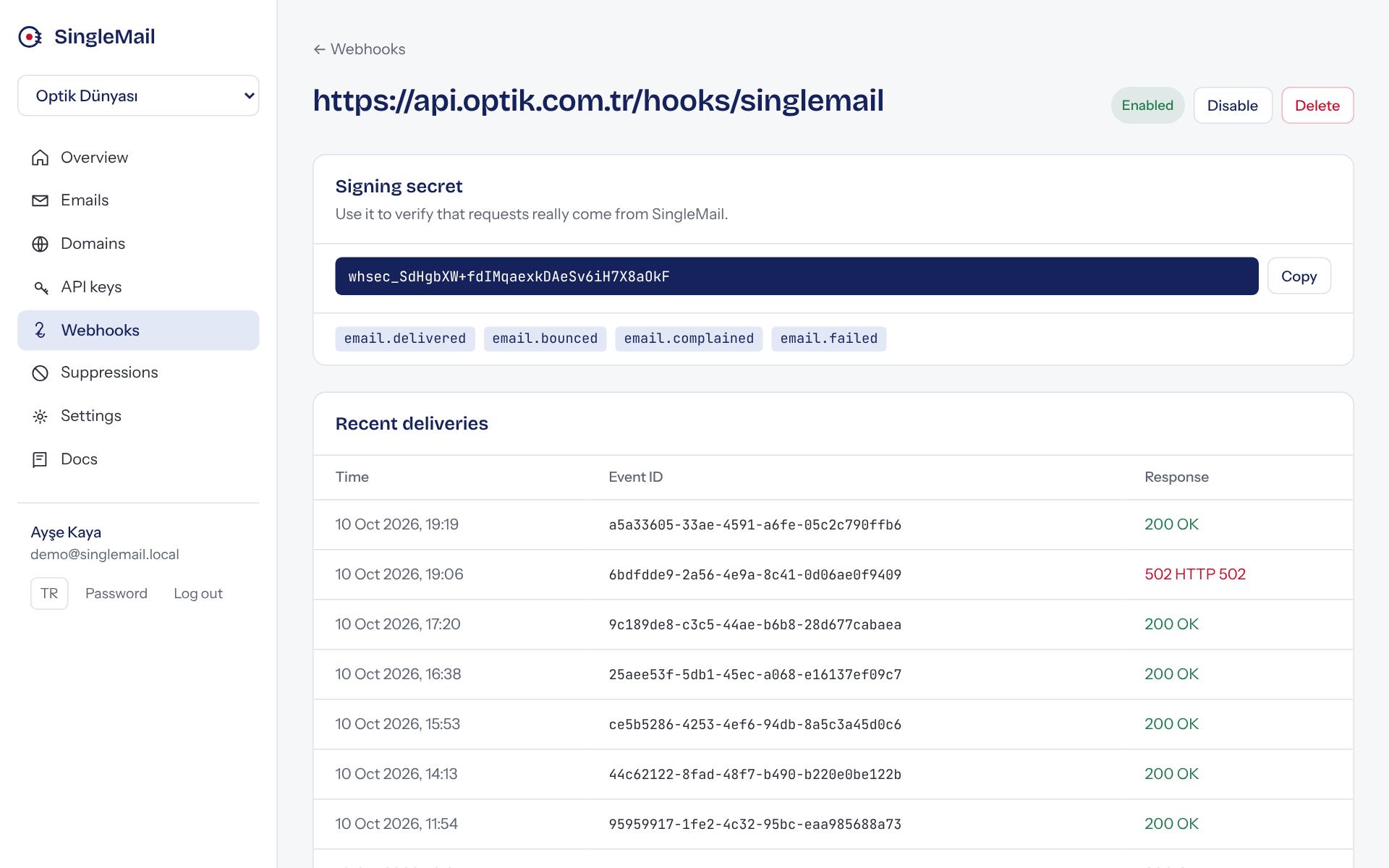
How to verify incoming requests is explained on the Webhooks page.
Suppressions
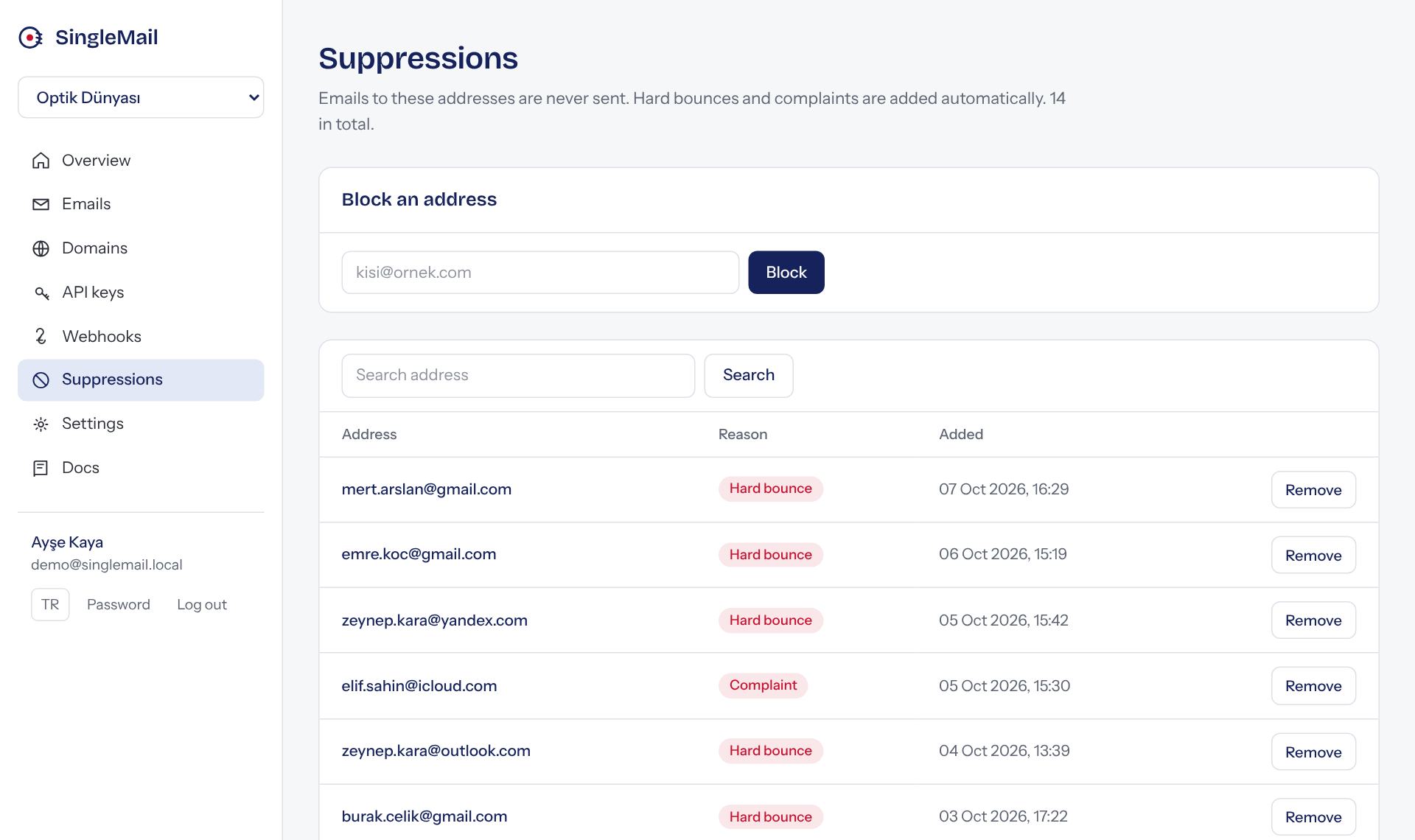
Emails to addresses on this list are never sent; an attempt ends as failed. Hard bounces and spam complaints are added automatically, which protects your sender reputation. Remove an address and it can receive email again.
Settings and team
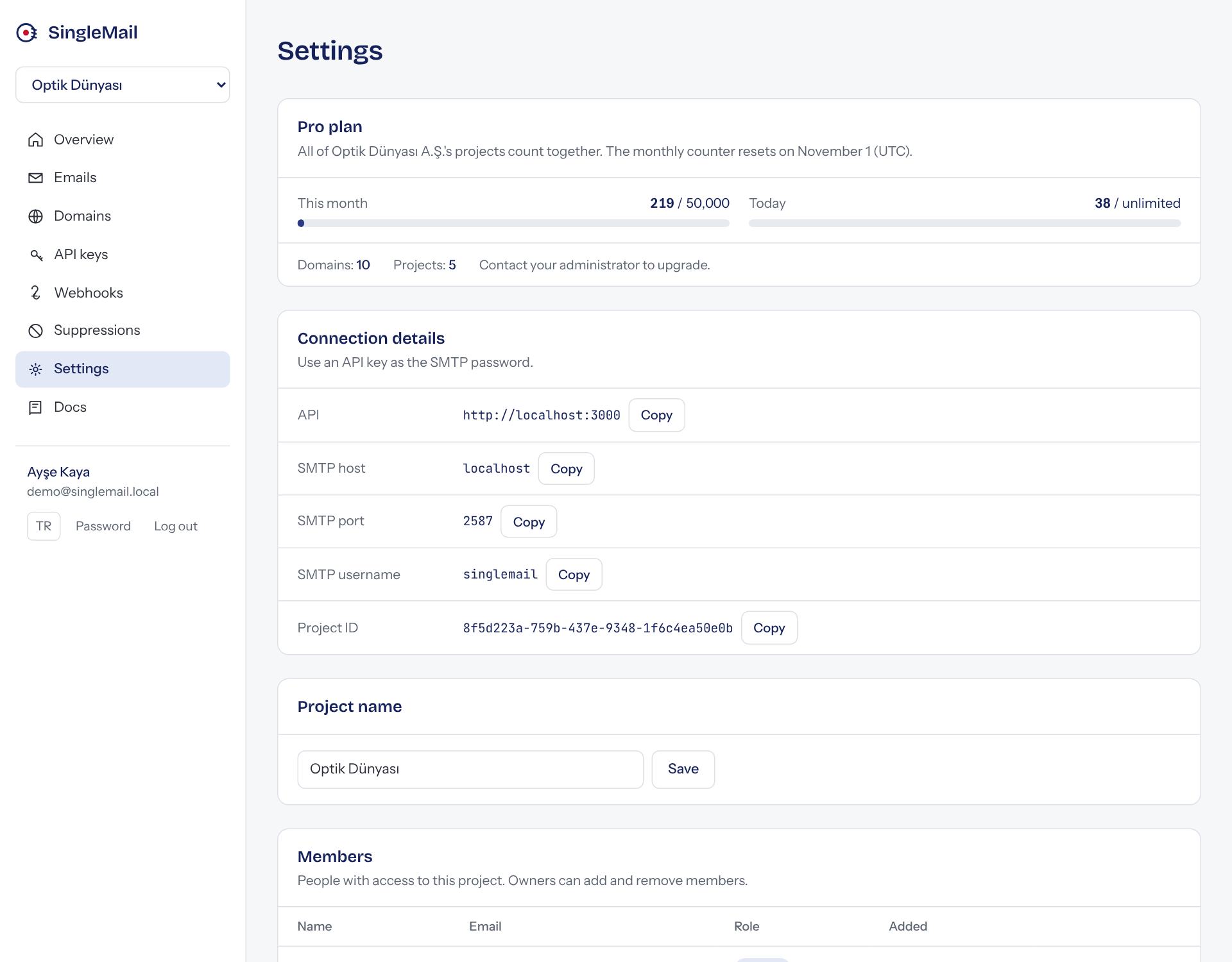
Connection details (API URL, SMTP host and port, project ID) live here. Owners can add people who already have an account by email; someone without an account needs one from an administrator. Your company's plan and this month's usage are shown at the top, as on the Overview page.
| Role | Permissions |
|---|---|
| Owner | Everything: add/remove members, rename and delete the project. |
| Member | Sees logs; manages domains, webhooks and suppressions and can create sending-only keys. Can't change members or project settings. When removed, the keys and webhooks they created are revoked automatically. |